In this article
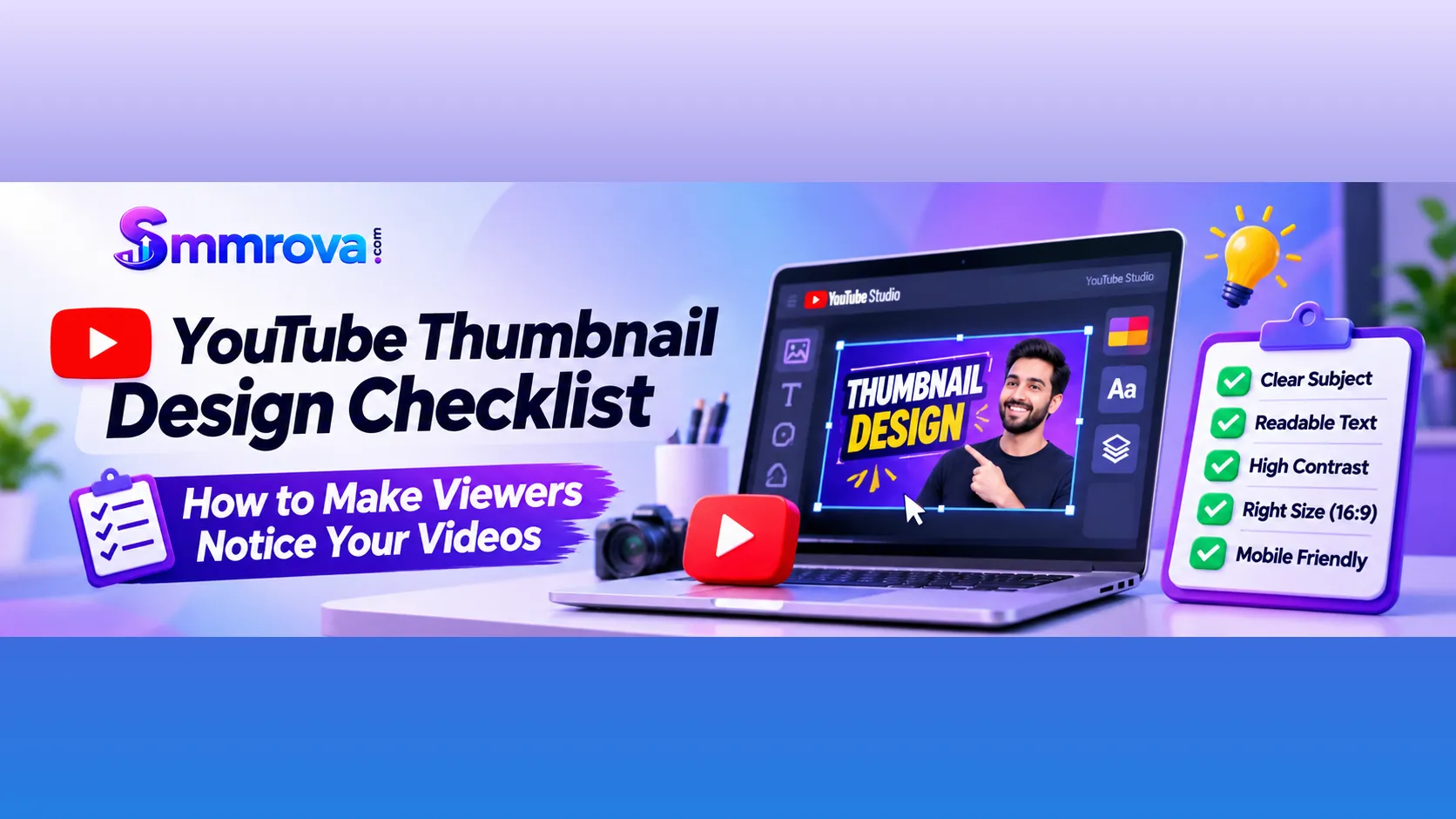
A YouTube thumbnail is often the first visual impression viewers get before deciding whether to explore a video. Even when your content is informative and well-produced, an unclear or poorly designed thumbnail may make it difficult for potential viewers to understand what the video offers.
That is why following a YouTube thumbnail design checklist is an important part of preparing your videos for publication. A good thumbnail communicates the subject quickly, creates visual interest and accurately represents the content without misleading viewers.
In this guide, you will learn how to make YouTube thumbnails using practical design principles, including visual hierarchy, subject placement, contrast, readable text, mobile previews and title-thumbnail alignment. You will also learn how to review different designs using YouTube Studio's available testing features.
Why Does YouTube Thumbnail Design Matter?
A thumbnail works as a visual preview of your video. When someone encounters your video on YouTube, the thumbnail and title provide important context about what they can expect.
A well-designed thumbnail can help viewers understand the video's subject and decide whether it matches their interests. However, no thumbnail design guarantees clicks, views or higher rankings.
Effective thumbnail design focuses on three important goals:
- Clarity: Viewers should understand the main subject without examining too many details.
- Relevance: The thumbnail should accurately represent the actual video.
- Visual interest: A thoughtful composition can make the video easier to notice among other content.
YouTube Thumbnail Size and Technical Requirements
Before working on the design, prepare your canvas using YouTube's current thumbnail recommendations.
| Specification | Recommendation |
|---|---|
| Recommended resolution | 3840 × 2160 pixels |
| Aspect ratio | 16:9 for standard videos |
| Minimum width | 640 pixels |
| File formats | JPG or PNG |
| Mobile upload size limit | 2 MB for video thumbnails |
YouTube recommends using a large, high-quality image. Upload size limits can vary depending on the device and thumbnail type, so check the current Help documentation before exporting.
For standard videos, a 16:9 canvas is a practical starting point. Shorts use a different vertical presentation, and their thumbnail requirements should be considered separately.
Official reference: YouTube Help – Add Custom Thumbnails.
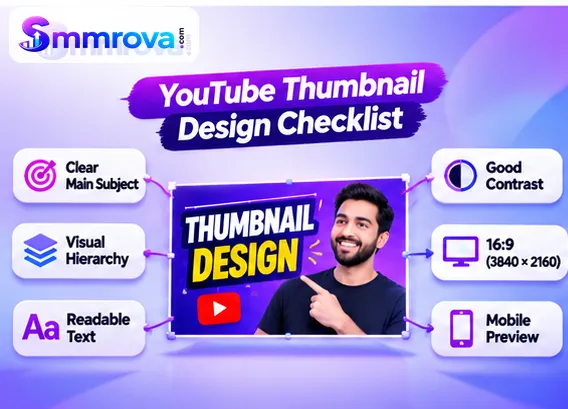
YouTube Thumbnail Design Checklist: 10 Essential Steps
1. Choose One Clear Main Subject
Every effective thumbnail needs a visual focal point. This could be a person, product, object, screenshot or another element directly connected to the video.
Try to avoid placing too many unrelated elements into one composition. When everything competes for attention, viewers may struggle to understand what matters most.
For example:
- A technology review can feature the product as the main subject.
- A tutorial can show the finished result or a relevant action.
- A travel video can highlight one recognizable location.
- An educational video can use a relevant visual illustration.
Before adding decorative elements, ask yourself whether the main subject is immediately recognizable.
2. Create a Strong Visual Hierarchy
Visual hierarchy determines how viewers notice and process the different elements in your thumbnail.
Instead of giving every element equal importance, organize them into a clear order:
- Main subject or focal image.
- Short supporting text, when necessary.
- Secondary visual elements.
- Small decorative details, only when useful.
Use differences in size, position, contrast and spacing to establish this hierarchy. The most important element should receive the greatest visual attention.
3. Use Readable and Minimal Text
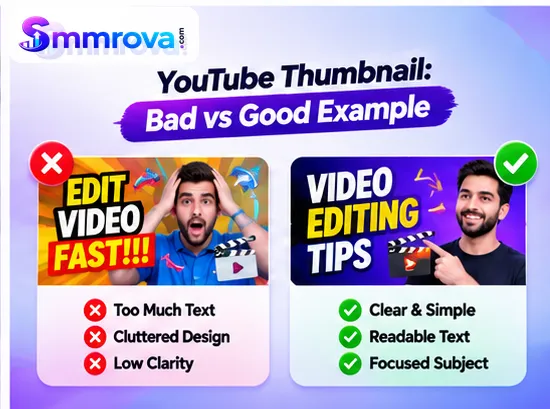
Text can help explain the subject of a video, but excessive wording makes thumbnails harder to understand, especially on smaller screens.
Use a short phrase that adds context rather than repeating the entire video title.
For example:
- Video title: How to Edit Videos for Beginners
- Thumbnail text: EDIT LIKE A PRO
Choose a clear font with sufficient weight and spacing. Avoid complicated typography that becomes difficult to read when the thumbnail appears at a smaller size.
Remember that not every thumbnail needs text. Sometimes a strong image communicates the subject more effectively.
4. Use Contrast to Separate Important Elements
Contrast helps important elements stand out from the background. Without enough separation, text and objects can blend together and become difficult to recognize.
You can improve contrast by:
- Using light text on a dark background or dark text on a light background.
- Choosing background colors that separate the subject from its surroundings.
- Using subtle outlines or shadows when they improve readability.
- Avoiding too many competing colors.
- Keeping the background visually simpler than the focal subject.
A consistent color palette can also help establish a recognizable visual identity across your channel.
5. Position the Main Subject Carefully
Subject placement affects how viewers move their attention across a thumbnail.
You can experiment with placing the main subject slightly to the left or right while keeping enough space for supporting text or other visual elements.
However, do not follow composition rules mechanically. The best placement depends on the subject, background, video topic and intended visual message.
Also, check that important elements are not hidden behind timestamps or cropped in smaller preview formats.
6. Match the Thumbnail With the Video Title
Your title and thumbnail should work together as one communication system.
The title can explain the topic, while the thumbnail provides a quick visual interpretation. They should complement each other instead of repeating the same information.
For example:
| Video Title | Thumbnail Message |
|---|---|
| How to Build a Website in 2026 | BUILD YOUR SITE |
| 5 Common Smartphone Camera Mistakes | AVOID THESE |
| Beginner's Guide to Video Editing | EDIT BETTER |
Most importantly, the thumbnail must not promise something that the video does not deliver. Accurate expectations help build audience trust.
7. Preview the Thumbnail on Mobile Devices
A thumbnail may look attractive on a large computer screen but become difficult to understand when viewed at a smaller size.
Before exporting your design, reduce its preview size and check the following:
- Can you recognize the main subject?
- Is the text still readable?
- Are the important visual elements clearly separated?
- Does the overall composition remain understandable?
- Are there any unnecessary details?
It is also useful to inspect your thumbnail against a background similar to YouTube's interface. This helps identify elements that may visually disappear or blend into the surrounding interface.
8. Maintain a Consistent Channel Design Style
Using a consistent visual style can make your channel's content easier to recognize.
You do not need to make every thumbnail identical. Instead, establish a few recurring design elements, such as:
- A consistent typography style.
- A limited color palette.
- Similar image treatment.
- Recognizable graphic elements.
- A repeatable layout approach where appropriate.
Keep enough variation to communicate the unique subject of each video. Consistency should support recognition, not make every thumbnail look repetitive.
9. Avoid Misleading Visuals and Unnecessary Clickbait
An attractive thumbnail should create interest without misrepresenting the video.
Avoid using unrelated images, exaggerated visual claims or edits that create a false impression about what viewers will see.
Also, make sure your thumbnail follows YouTube's Community Guidelines. Misleading, inappropriate or policy-violating imagery can create problems for your content.
The best approach is to make the thumbnail interesting while keeping its message consistent with the actual video.
10. Test Different Thumbnail Designs
Design decisions are not always predictable. A thumbnail that looks impressive to its creator may not perform the same way with the intended audience.
When available, use YouTube Studio's Test & Compare feature to compare different thumbnail options.
You can prepare up to three distinct thumbnail variations and allow YouTube's testing system to evaluate them with viewers on eligible videos.
For example, you could test:
- Version A: A close-up subject with minimal text.
- Version B: A wider composition with a short headline.
- Version C: A different background and subject placement.
YouTube evaluates the options using watch time share rather than simply choosing the image with the highest click-through rate. Testing may take time, and a clear winner is not guaranteed.
Feature availability and video eligibility can vary. Check your YouTube Studio account to see whether Test & Compare is available to you.
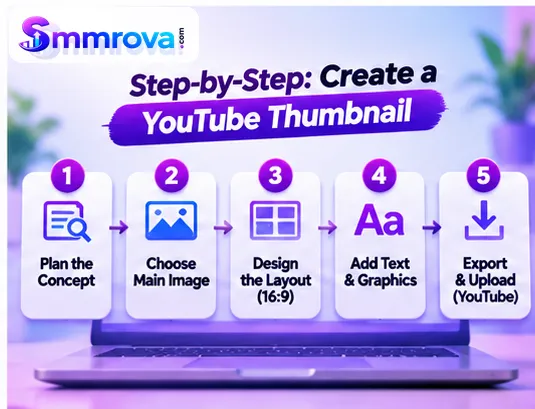
How to Create a YouTube Thumbnail Step by Step
Once you understand the design principles, you can use a simple workflow to create thumbnails for your videos.
Step 1: Understand the Video Topic
Watch the video or review its main points. Identify the most important idea, result or visual moment that should be communicated through the thumbnail.
Step 2: Select the Main Image
Choose a high-quality image that accurately represents the video. You can use an original photograph, product image, screenshot or suitable graphic element.
Step 3: Prepare the Layout
Set up your 16:9 canvas and position the main subject. Leave enough space for text and supporting elements without overcrowding the composition.
Step 4: Add Supporting Text and Graphics
Include only the text or graphics that improve understanding. Check font size, contrast, alignment and spacing.
Step 5: Review and Export
Preview the design at a small size, check the spelling, verify the image dimensions and export the final file in a supported format.
Popular design tools include Canva, Adobe Photoshop and other image-editing applications. Choose a tool that matches your design experience and workflow.
How to Upload a Custom Thumbnail in YouTube Studio
After completing your design, you can upload it through YouTube Studio.
- Open YouTube Studio and sign in to your channel.
- Select Content from the left navigation menu.
- Choose the video you want to edit.
- Open its video details.
- Find the Thumbnail section.
- Select Upload file and choose your prepared image.
- Review the thumbnail and click Save.
YouTube requires account verification for custom thumbnail uploads. Changes may take some time to appear across the platform.
For the latest instructions, visit YouTube's official custom thumbnail guide.
Common YouTube Thumbnail Design Mistakes to Avoid
Even when you follow good design principles, some common mistakes can reduce thumbnail clarity.
Using Too Much Text
Long sentences make thumbnails difficult to read at smaller sizes. Keep text concise and focus on the main message.
Adding Too Many Visual Elements
Too many arrows, icons, shapes and decorative objects can distract from the subject. Remove anything that does not contribute to the message.
Ignoring Mobile Readability
Always check your thumbnail at a smaller size. Tiny text and complicated details may become almost impossible to recognize.
Making Misleading Promises
Do not use a dramatic image or headline that suggests something the video does not actually contain.
Never Reviewing Performance
Publishing a thumbnail is not the end of the process. Review available analytics and use eligible testing features to learn which designs communicate effectively with your audience.
Final YouTube Thumbnail Design Checklist
Before publishing your next video, use this quick checklist to review your thumbnail.
- Does the thumbnail clearly represent the video topic?
- Is there one recognizable main subject?
- Is the visual hierarchy easy to understand?
- Is the text short and readable?
- Does the design have sufficient contrast?
- Is the subject positioned appropriately?
- Does the thumbnail complement the video title?
- Does it remain clear on a mobile screen?
- Does it follow a consistent channel design style?
- Does it comply with YouTube's policies?
- Have you reviewed the available testing options?
Frequently Asked Questions
1. What is the best size for a YouTube thumbnail?
YouTube currently recommends 3840 × 2160 pixels for standard video thumbnails, with a 16:9 aspect ratio. The minimum width is 640 pixels. Check YouTube's latest upload requirements before exporting your design.
2. How many words should a YouTube thumbnail contain?
There is no fixed word limit for every thumbnail. However, short and meaningful text is generally easier to understand than long sentences. Use text only when it adds useful context.
3. Which tools can I use to design YouTube thumbnails?
You can use Canva, Adobe Photoshop and other image-editing tools. The best option depends on your design experience, available features and preferred workflow.
4. Can I change my YouTube thumbnail after publishing?
Yes. You can open the video details in YouTube Studio, select a different thumbnail and save your changes. It may take some time for the updated image to appear everywhere.
5. Does a better thumbnail guarantee more YouTube views?
No. A well-designed thumbnail can communicate the video topic more clearly, but views depend on multiple factors, including audience interest, video relevance and viewer behaviour. No thumbnail can guarantee a specific result.
6. What is YouTube Thumbnail Test & Compare?
It is a YouTube Studio feature that allows eligible creators to compare up to three thumbnail variations on eligible videos. YouTube evaluates the options using watch time share and may identify a winning design when the results are sufficiently clear.
Conclusion
Creating an effective YouTube thumbnail requires more than choosing an attractive image. You need to understand your video topic, organize the visual elements, maintain readability and make sure the design accurately represents the content.
Use this YouTube thumbnail design checklist as part of your regular video publishing workflow. Review your designs on smaller screens, maintain a recognizable channel identity and use YouTube Studio's available testing features when appropriate.
Remember that good thumbnail design supports clear communication and helps viewers make informed decisions. Focus on relevance, quality and consistency rather than relying on exaggerated claims or guaranteed performance.
Looking to explore YouTube marketing services? Visit the Smmrova YouTube SMM Panel to review the available service categories and their details.
 Up nextYouTube Channel Launch Checklist: Branding, Playlists and Your First 10 VideosYouTube · 10 min read
Popular YouTube services
Ready to grow your social media?
Create a free SmmRova account and pay with bKash, Nagad or Rocket. We never ask for your password.
Create Free Account View ServicesQuestions before you order? Message us on WhatsApp