In this article
Starting a YouTube channel is an exciting step, but creating an account and uploading a video are only the beginning. A successful channel needs a clear identity, useful content, organized playlists and a consistent publishing plan.
If you are preparing to launch your first channel, following a YouTube channel launch checklist can help you avoid common setup mistakes and create a better experience for future viewers.
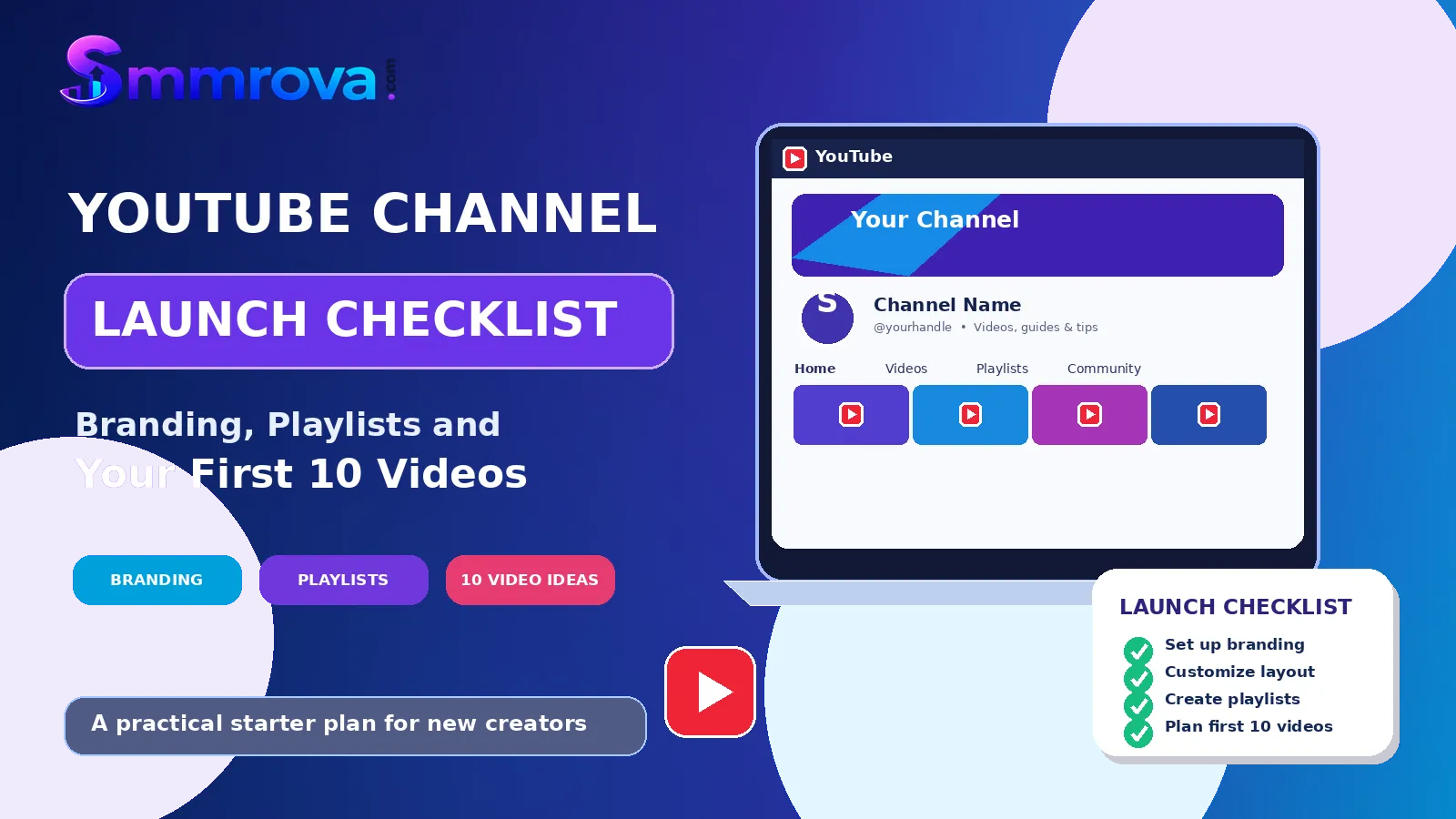
In this guide, you will learn how to set up your channel branding, customize its homepage, create useful playlists and plan your first 10 videos. Whether you are a beginner creator, educator or small business owner, this checklist will give you a practical starting point.
Why Should You Plan Your YouTube Channel Before Launching?
A YouTube channel is more than a collection of videos. It is a content destination where viewers should be able to understand what you publish, who your content is for and why they might want to explore more.
Planning your channel before publishing helps you:
- Establish a recognizable channel identity.
- Communicate your content topic clearly.
- Make your homepage easier to navigate.
- Organize videos into relevant playlists.
- Maintain a consistent content direction.
- Prepare future video topics before you run out of ideas.
You do not need expensive equipment or a large production team to get started. A clear content plan and well-organized channel are more useful starting points than trying to make everything look complicated.
Step 1: Define Your Channel Identity and Content Niche
Before creating your channel, decide what kind of content you want to publish and whom you want to reach.
Choose a Clear Content Niche
A niche helps viewers understand what they can expect from your channel. Instead of publishing unrelated topics without a clear direction, start with one main subject and a few related content categories.
For example:
- Education: Tutorials, lessons, study techniques and explanations.
- Technology: Gadget reviews, software guides and troubleshooting.
- Business: Marketing tips, business tutorials and practical strategies.
- Entertainment: Original storytelling, commentary and creative videos.
- Lifestyle: Daily routines, travel experiences and personal interests.
Choose a topic that matches your knowledge, interests and ability to produce content consistently.
Decide Who Your Audience Is
Think about the people you want to help or entertain.
Ask yourself:
- What problems do these viewers want to solve?
- What questions do they frequently ask?
- What type of videos would they find useful?
- Are they beginners or experienced viewers?
Understanding your intended audience makes it easier to choose relevant video topics and develop your channel's identity.
Choose a Channel Name and Handle
Your channel name should be easy to recognize, pronounce and remember. It should also communicate your brand or content identity where possible.
When choosing a name:
- Avoid unnecessary numbers and complicated spelling.
- Choose something relevant to your content.
- Check handle availability.
- Keep the name reasonably short.
- Think about whether it will still suit your channel in the future.
If you are creating a business channel or using a name different from your personal Google Account name, YouTube provides a separate channel creation option. A Brand Account can support multiple owners or managers.
Official guide: Create a YouTube Channel.
Step 2: Set Up Your YouTube Channel Branding
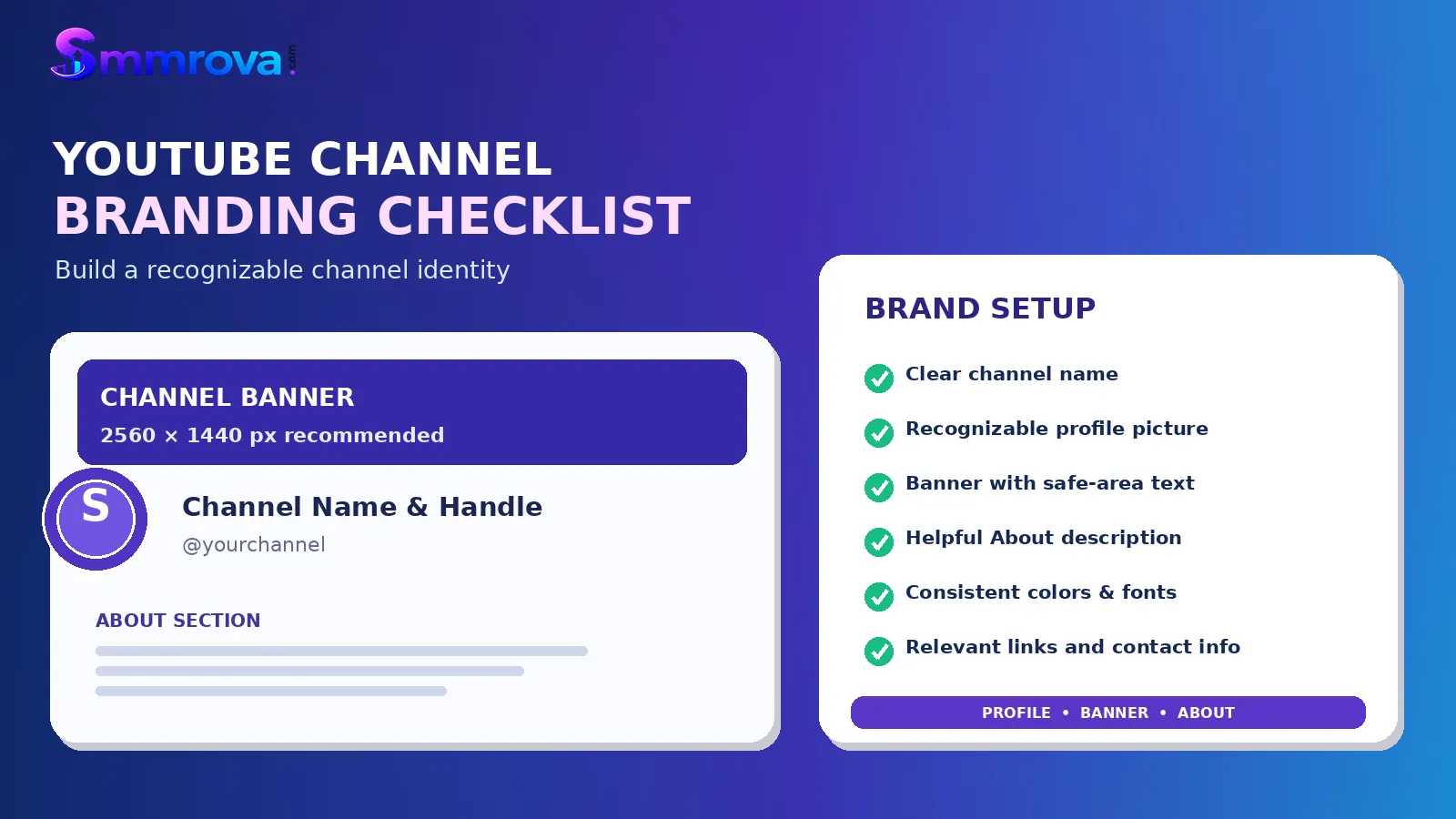
Your channel branding helps communicate your identity visually. YouTube Studio provides customization options for your profile picture, banner image, watermark and basic channel information.
1. Add a Professional Profile Picture
Your profile picture represents your channel across YouTube. Choose an image that remains recognizable at small sizes.
You can use:
- Your own recognizable portrait for a personal brand.
- A simple logo for a business or organization.
- A distinctive brand symbol for a content-focused channel.
Avoid overly complicated designs with small text because they may become difficult to recognize in smaller display areas.
2. Design Your YouTube Channel Banner
Your banner provides additional space to communicate your channel identity and content focus.
YouTube's current banner recommendations include:
| Specification | Recommended Size |
|---|---|
| Minimum dimensions | 2048 × 1152 pixels |
| Recommended dimensions | 2560 × 1440 pixels |
| Safe area at minimum size | 1235 × 338 pixels |
| Maximum file size | 6 MB |
| Aspect ratio | 16:9 |
Remember that the banner is displayed differently on computers, mobile devices and televisions. Keep important text and logos inside the recommended safe area.
Useful banner elements include:
- Channel name or logo.
- A short description of your content.
- Your main subject or niche.
- A simple visual identity with consistent colors.
3. Write a Helpful Channel Description
Your About section should explain what your channel provides and who should watch it.
A useful channel description can include:
- A brief introduction to the channel.
- The main topics you cover.
- The intended audience.
- The type of videos viewers can expect.
- Relevant contact information or business details, where appropriate.
Example:
"Welcome to our channel! We share practical digital marketing tutorials, SEO tips and social media strategies for beginners and small business owners. Subscribe to explore useful guides, step-by-step lessons and practical marketing ideas."
Customize this example to accurately describe your own content. Do not promise a publishing schedule unless you can maintain it.
4. Check Your Channel Handle and Website Links
Choose a recognizable handle that is consistent with your brand where possible. Add relevant website or social media links through the channel customization settings when appropriate.
Official branding guide: Manage Your YouTube Channel Branding.
Step 3: Customize Your YouTube Channel Homepage
Once your branding is ready, organize your channel homepage so visitors can explore your content more easily.
Open YouTube Studio and navigate to Customization. You can use the Home tab to configure your channel trailer, featured video and homepage sections.
Add a Channel Trailer
A channel trailer gives people who have not subscribed a short introduction to your channel.
Your trailer should explain:
- Who you are or what your channel represents.
- What topics you cover.
- Who will benefit from your content.
- What viewers can explore next.
Keep the introduction focused. You do not need to explain every feature of your channel in one video.
Choose a Featured Video
You can also highlight a video for returning subscribers. Choose an upload that represents your current content direction or introduces an important topic.
Organize Your Homepage Sections
YouTube supports different homepage sections, including uploads, Shorts, playlists and other eligible content collections.
For a beginner channel, a practical layout might include:
- Channel introduction or featured video.
- Latest uploads.
- Beginner tutorials.
- Topic-specific playlists.
- Short videos, where relevant.
You do not need to use every available section. Keep the homepage simple and arrange the most useful content near the top.
YouTube currently allows up to 12 custom sections on the Home tab.
Official guide: Customize Your YouTube Channel Layout.
Step 4: Create Relevant YouTube Playlists
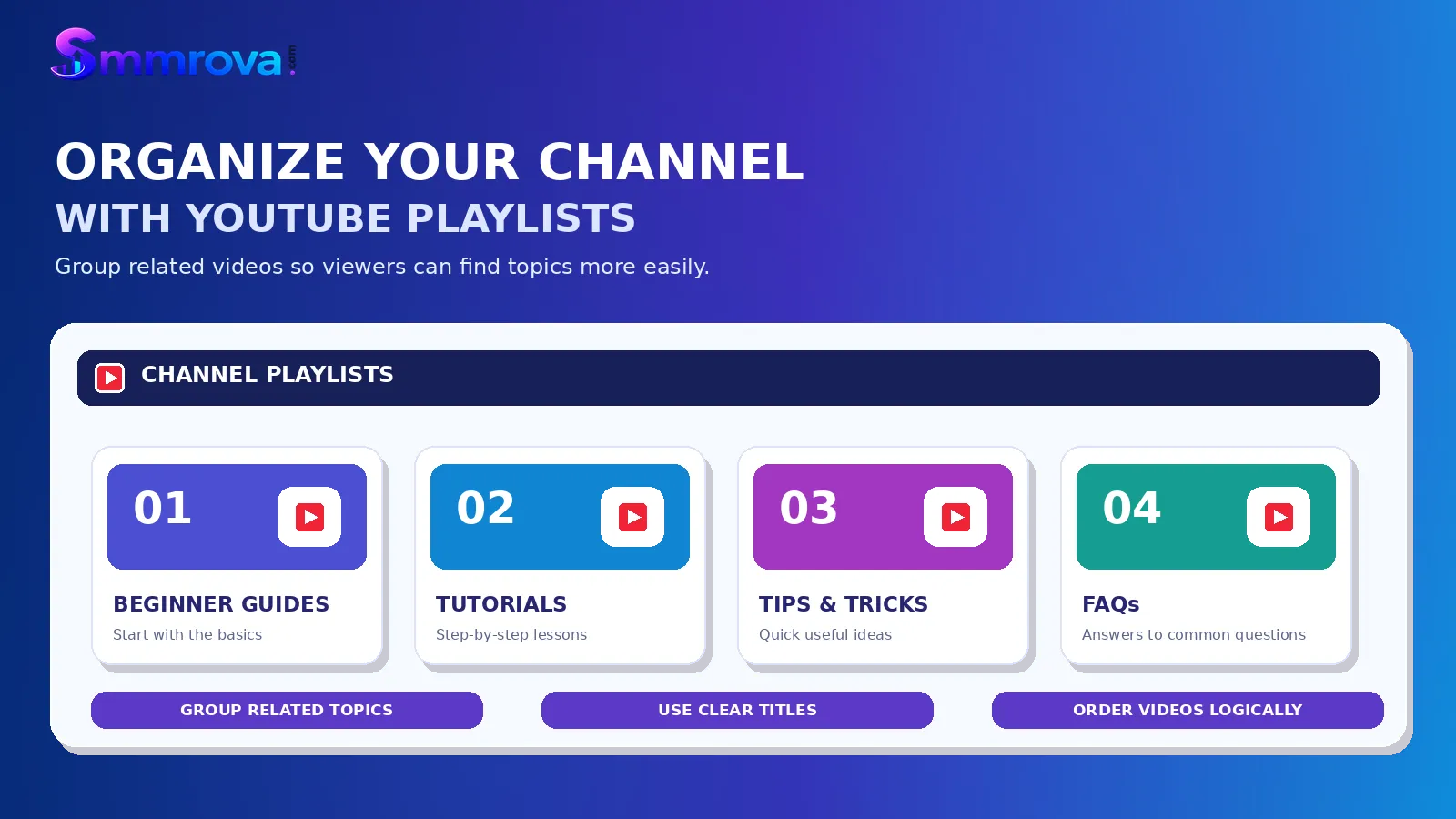
Playlists help organize related videos into collections. Instead of making visitors search through every upload individually, you can group videos according to their topics or learning sequence.
Why Should You Use Playlists?
- Organize related video topics.
- Make educational content easier to follow.
- Help visitors discover related uploads.
- Create a more organized channel homepage.
How to Create a Playlist
You can create and manage playlists through YouTube Studio.
- Sign in to YouTube Studio.
- Click CREATE in the top-right corner.
- Select New playlist.
- Enter a clear playlist title and description.
- Choose the visibility setting.
- Add the relevant videos.
- Choose the video arrangement and click CREATE.
Playlist Examples for a New Channel
| Playlist | Suggested Content |
|---|---|
| Beginner Guides | Introductory lessons and basic tutorials. |
| Step-by-Step Tutorials | Practical demonstrations and walkthroughs. |
| Tips and Tricks | Short explanations and useful recommendations. |
| Frequently Asked Questions | Answers to common audience questions. |
Create playlists based on actual video topics. Avoid creating empty or unnecessary collections just to fill your homepage.
Official guide: Manage Playlists in YouTube Studio.
Step 5: Plan Your First 10 YouTube Videos
One of the biggest challenges for new creators is deciding what to publish first. A simple starter plan can help you maintain a clear direction instead of choosing random topics every time you want to upload.
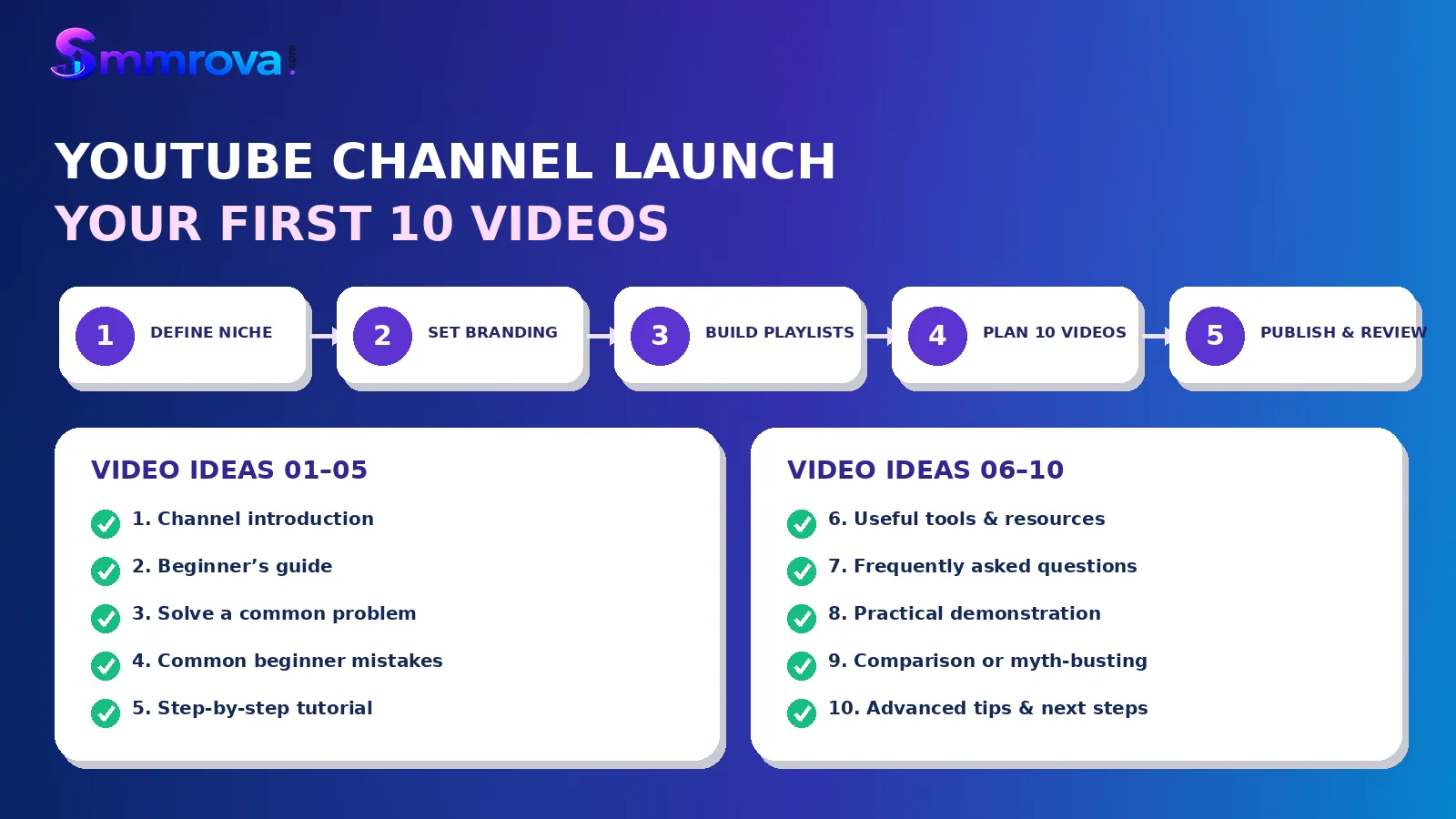
Here is a flexible framework for planning your first 10 videos. Adapt each topic to your own niche and audience.
| No. | Video Idea | Purpose |
|---|---|---|
| 1 | Welcome to the Channel | Introduce your channel and its purpose. |
| 2 | Beginner's Guide to Your Main Topic | Explain the basic concepts. |
| 3 | How to Solve a Common Problem | Provide practical help. |
| 4 | 5 Common Beginner Mistakes | Address frequent problems. |
| 5 | Step-by-Step Tutorial | Demonstrate a useful process. |
| 6 | Tools or Resources You Recommend | Introduce useful resources. |
| 7 | Answer 5 Frequently Asked Questions | Respond to audience questions. |
| 8 | Practical Example or Demonstration | Show how your topic works in practice. |
| 9 | Comparison or Myth-Busting Guide | Clarify common misunderstandings. |
| 10 | Advanced Tips and Next Steps | Help viewers continue learning. |
This is a suggested editorial framework, not a YouTube requirement. You can change the sequence, combine related topics or choose different formats depending on your niche.
Build Three or Four Content Pillars
Before writing all 10 video scripts, group your ideas into a few content pillars.
For example, a digital marketing channel might use:
- SEO tutorials.
- Social media marketing tips.
- Website and online business guides.
- Practical tool demonstrations.
These pillars help maintain a clear channel direction while allowing you to cover different subjects.
Prepare a Realistic Publishing Schedule
Choose a publishing frequency that matches your time, resources and production capacity.
Before launch, prepare your first few video ideas, titles, scripts and production requirements. Having a small content backlog can make it easier to maintain consistency without rushing every upload.
Step 6: Set Up Your Video Publishing Workflow
After planning your first videos, create a repeatable process for preparing and publishing each upload.
Use this workflow:
- Research a topic that is relevant to your audience.
- Prepare an outline or script.
- Record and edit the video.
- Create a relevant title and thumbnail.
- Write a helpful description.
- Check any copyright or usage permissions.
- Add the video to the relevant playlist.
- Review visibility and publishing settings.
- Check the final video before sharing it.
You can also create a simple content calendar to record each video's topic, production status, planned date and playlist.
Final YouTube Channel Launch Checklist
Before introducing your channel to your audience, review the following items.
- Channel niche and audience are clearly defined.
- Channel name and handle are selected.
- Profile picture is uploaded.
- Channel banner is designed and checked on different devices.
- About section accurately explains the channel.
- Relevant website or contact links are added.
- Homepage layout is organized.
- Channel trailer or featured video is selected where appropriate.
- Relevant playlists are created.
- First 10 video topics are planned.
- Initial production workflow is ready.
- Publishing schedule is realistic.
- Channel and video settings have been reviewed.
Frequently Asked Questions
1. What do I need before starting a YouTube channel?
You need a Google Account and a YouTube channel. Before publishing, it is helpful to prepare your channel name, handle, profile picture, banner, description and initial content plan.
2. Should I create a personal or business YouTube channel?
Choose the setup that matches your needs. A personal channel may be suitable for an individual creator, while a business or Brand Account setup can be useful when a different channel identity or multiple owners and managers are required.
3. What is the recommended YouTube banner size?
YouTube recommends 2560 × 1440 pixels for channel banner artwork. At the minimum 2048 × 1152 size, the recommended safe area for text and logos is 1235 × 338 pixels.
4. How many playlists should a new YouTube channel have?
There is no required number. Start with a few useful playlists that match your actual video topics. Add more collections as your content library develops.
5. What should my first 10 YouTube videos be about?
Start with an introduction, beginner guides, tutorials, common mistakes, practical demonstrations, FAQs and related topics that your intended audience wants to understand. Adapt the ideas to your niche.
6. Should I upload all 10 videos on the same day?
No. The first 10 videos in this guide are a planning framework, not an upload requirement. Choose a publishing schedule you can realistically maintain.
7. Can I change my channel branding after launch?
Yes. YouTube Studio provides customization settings that allow you to update your profile picture, banner, channel description, handle and homepage layout.
Conclusion
Launching a YouTube channel requires more preparation than simply creating an account and uploading a video. Your channel identity, branding, homepage layout, playlists and content direction all contribute to the experience you offer viewers.
Use this YouTube channel launch checklist to prepare each important part of your channel. Start with a clear niche, create recognizable branding, organize your homepage, plan relevant playlists and develop your first 10 video topics.
Most importantly, focus on producing original and useful content that serves your intended audience. Consistent planning and a realistic publishing workflow will give you a more organized foundation for developing your channel over time.
Exploring YouTube marketing resources? Visit the Smmrova YouTube SMM Panel to review the available YouTube-related service categories. Always evaluate services carefully and follow YouTube's platform policies. Building your channel should remain focused on original content and genuine audience interest.
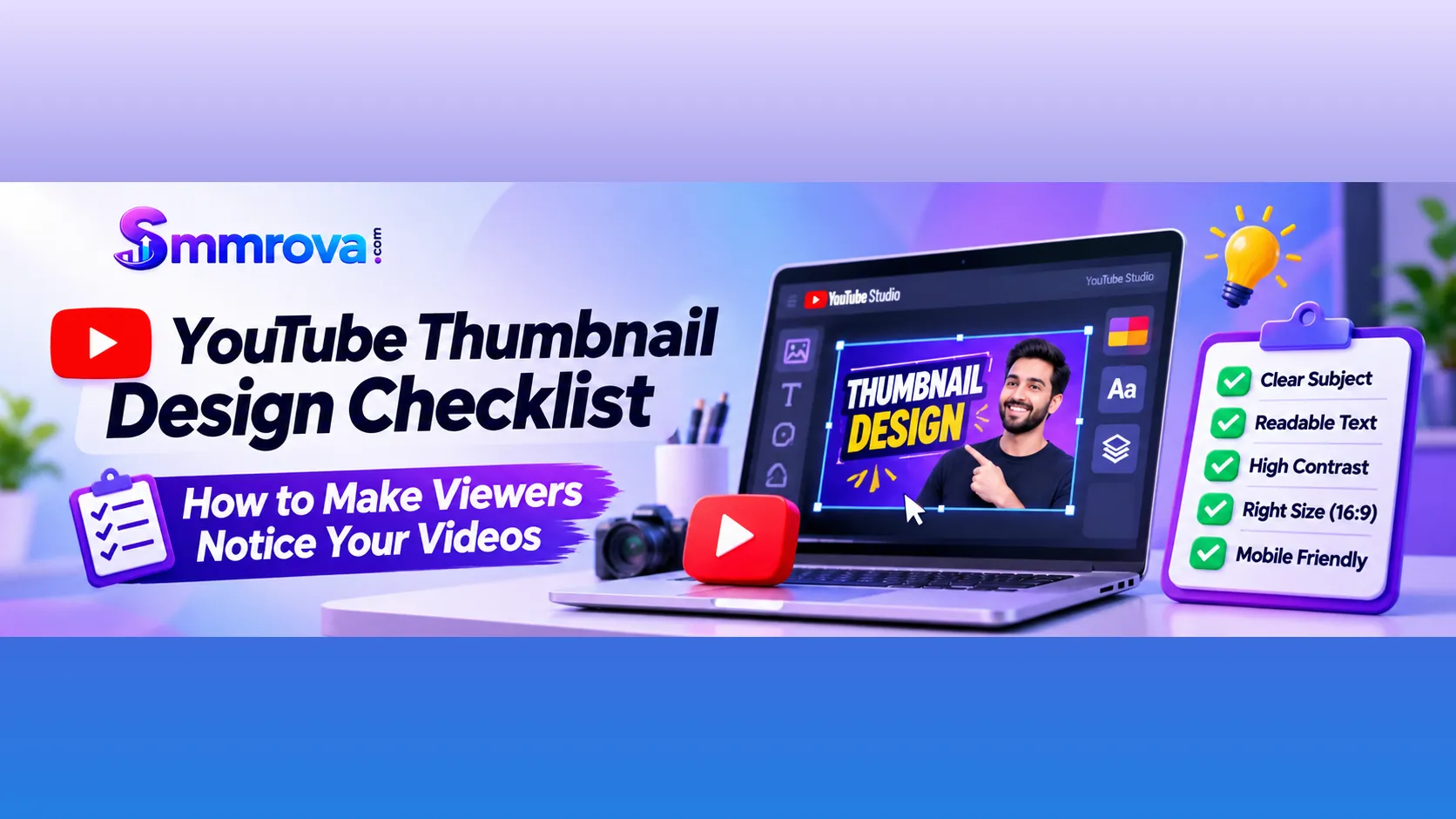 Up nextYouTube Thumbnail Design Checklist: How to Make Viewers Notice Your VideosYouTube · 10 min read
Popular YouTube services
Ready to grow your social media?
Create a free SmmRova account and pay with bKash, Nagad or Rocket. We never ask for your password.
Create Free Account View ServicesQuestions before you order? Message us on WhatsApp